
Edit
Ask for changes
Say what to change in your own words. Point at the exact moment, element or file with @, attach new material, and read what changed in the Changes card.
After the first round, the composer says Say what to change. Type @ to point at a file, a moment or what you selected. Anything you'd tell an editor works: "make the opening faster", "swap the music for something calmer", "the logo should be bigger in the last scene".
Point at things with @
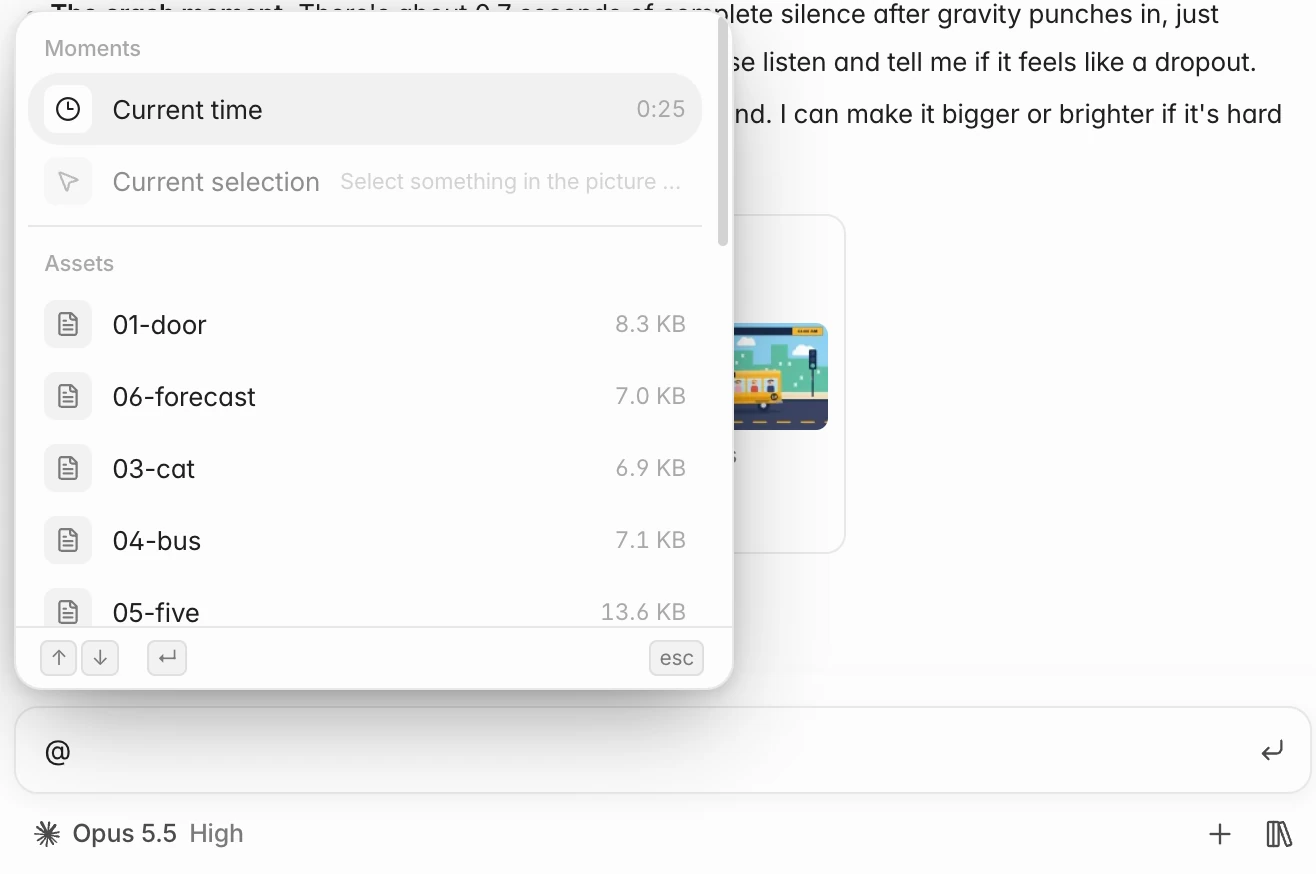
Type @ in the composer to open the reference menu:
| Group | Item | What it adds |
|---|---|---|
| Moments | Current time | The playhead's position, as a chip like Ship 0:53 |
| Moments | Current selection | What you selected in the picture or on the timeline |
| Assets | Your files | A file from the project: images, video, audio, motion scenes |
Use the arrow keys and Enter to pick, or Esc to close. Current time is available once the film is ready; Current selection once you've selected one element or one clip (a framed area or several clips don't count).
There are more ways to point at things without typing @:
- Select something in the picture and press the quote button above it (Quote into chat).
- Right-click a clip on the timeline and choose Point at this clip in the chat.
- Hold Shift and click or drag along the timeline's ruler to point at a moment or a stretch of time.
- Drag a file from the Assets panel into the composer.
- Press the sparkle button in the inspector (Ask AI about this layer / clip).
{narrow}{narrow}
Attach new material
Press + (Add files), drop files onto the composer, or paste them. They go to the agent with your message and into the project's assets. See Adding your material.
Send, queue and stop
- Enter sends; ShiftEnter starts a new line.
- Pressing Enter while the agent is working queues your message: it stays in the box and sends when the run finishes. Don't send cancels it. If the run is stopped or interrupted, it isn't sent.
- The send button becomes Stop during a run, or press Esc.
Read what changed
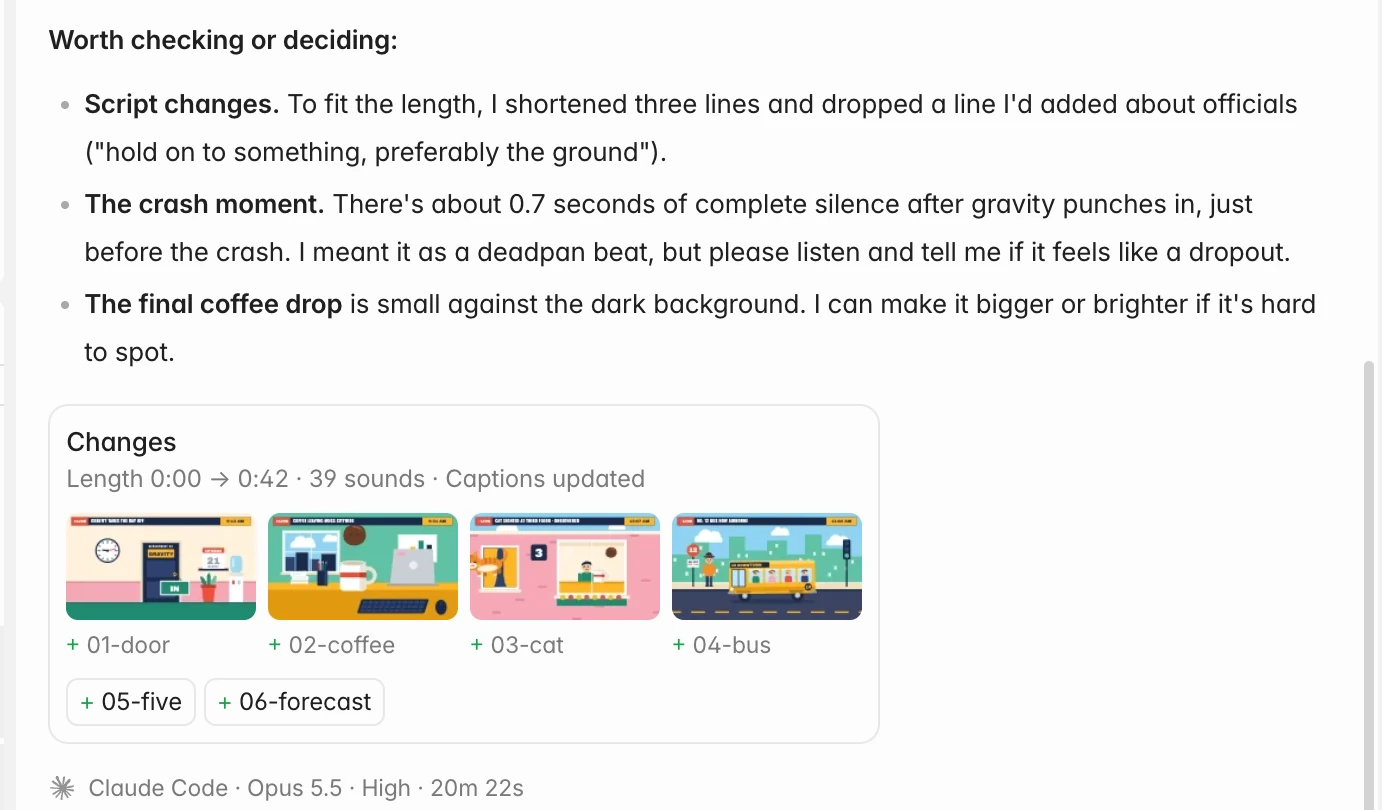
Each round ends with the agent's answer and, if the film changed, a Changes card:
- The length (before and after, 1:21 → 1:29, when it changed), how many sounds were added or edited, and whether captions or the picture changed.
- The scenes that were added (+), edited (~) or removed (−): up to four added or edited ones as pictures, the rest as chips (six at most, then +N). Click one to jump to it on the timeline. Removed scenes are struck through.
When the agent undoes your hand edits
If a round of changes overwrites edits you made by hand, a card says This turn undid N of your hand edits and lists them. Choose Keep AI's version, or Ask AI to put them back, which writes that request in the composer for you to send.
Tips
- One change per sentence is easier to follow than one long paragraph, but a list of several changes in one message is fine.
- Be specific about where: "in the second scene", or point with
@. - Small fixes are faster by hand. Retype a word, nudge an element or trim a clip yourself. See Edit on the canvas.
- Switch models for the job. A quick fix doesn't need Ultra Max. See Models and effort.