
Make a film
Running several projects
Start a film, move on to the next one. Projects shows which films are in progress, finished or waiting for you.
A run keeps going when you leave its project. You can start films in several projects and come back when they're done.
How many at once
Each plan runs a set number of generations at the same time:
| Plan | Generations at once |
|---|---|
| Free | 1 |
| Starter | 2 |
| Creator | 3 to 6, by tier |
| Studio | 8 to 16, by tier |
If you start one more than your plan allows, AnimSpark tells you and you can start it as soon as a current run finishes. Codex and Claude Code runs in the composer don't count toward this. See Plans and credits.
One chat at a time in each project
A project runs one chat at a time, so two agents never change the same film at once. While a turn is running, New session and Session history in the chat's header are greyed out: This turn is still running. Wait for it to finish, or stop it, before starting or switching chats. To work on something else in the meantime, open another project.

Projects
Projects, next to your avatar at the top left, lists all your projects. Click a card to open that project, or choose New project to start another film.
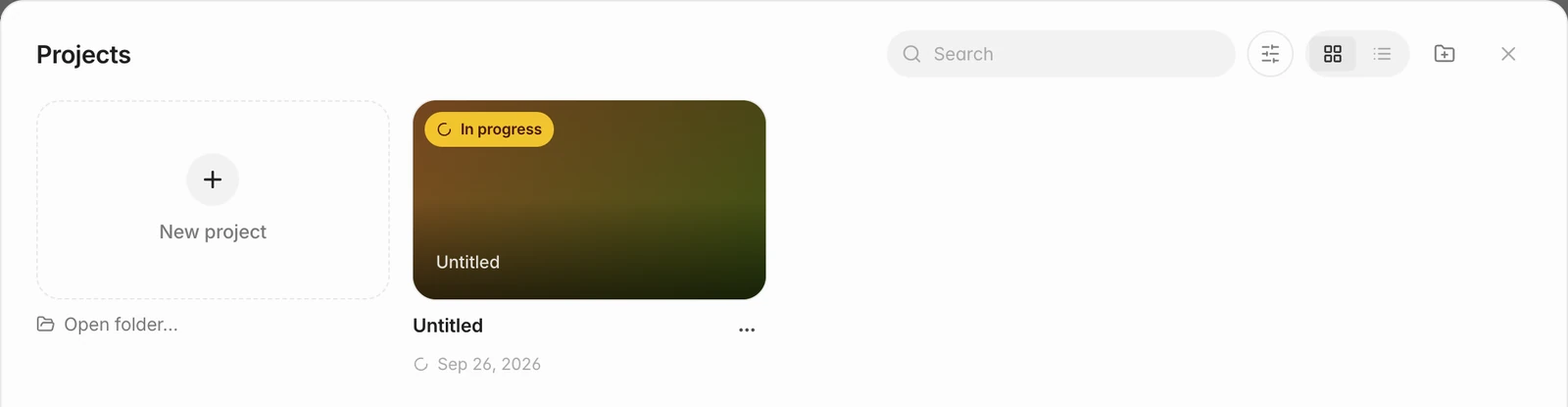
- A card shows In progress while its project is running.
- Cards can also show Needs you when the agent is waiting on you, for example with a question or a video clip to confirm, and Finished when a run is done and you haven't looked yet.
The Projects button gets a dot when something happens in another project: amber when a project needs you, green when one has finished. Open that project and the dot clears.
Pop-up notices
When a run in another project finishes, stops or needs you, a notice appears at the top right with an Open button. You won't get one for the project you're looking at while the window is in front.
In the Mac app you also get a system notification when the window isn't in front, and the Dock icon shows how many of these you haven't seen yet.
Notifications
Your avatar at the top left opens the main menu. Notifications there keeps a history: finished runs, questions, credits added, your subscription, and replies to feedback you sent. A red dot on the avatar means something is unread. Notifications can be archived; Clear read archives everything you've read. Codex and Claude Code runs show pop-up notices but aren't kept here.
Queued messages
You don't have to wait for a run to finish before saying what's next. Type your message and press Enter: it stays in the box with Queued — sends when this turn finishes. Choose Don't send, or clear the box, to cancel it. If the run doesn't finish normally (you stop it, or it's interrupted), the queued message isn't sent.