
Edit
Edit on the canvas
Click anything in the picture to select it, then move it, resize it, rotate it, or retype its text right where it is.
The picture in the viewer isn't a flat video. Every line of text, image and shape in a scene can be picked out and changed by hand, and your change is written back into the film.
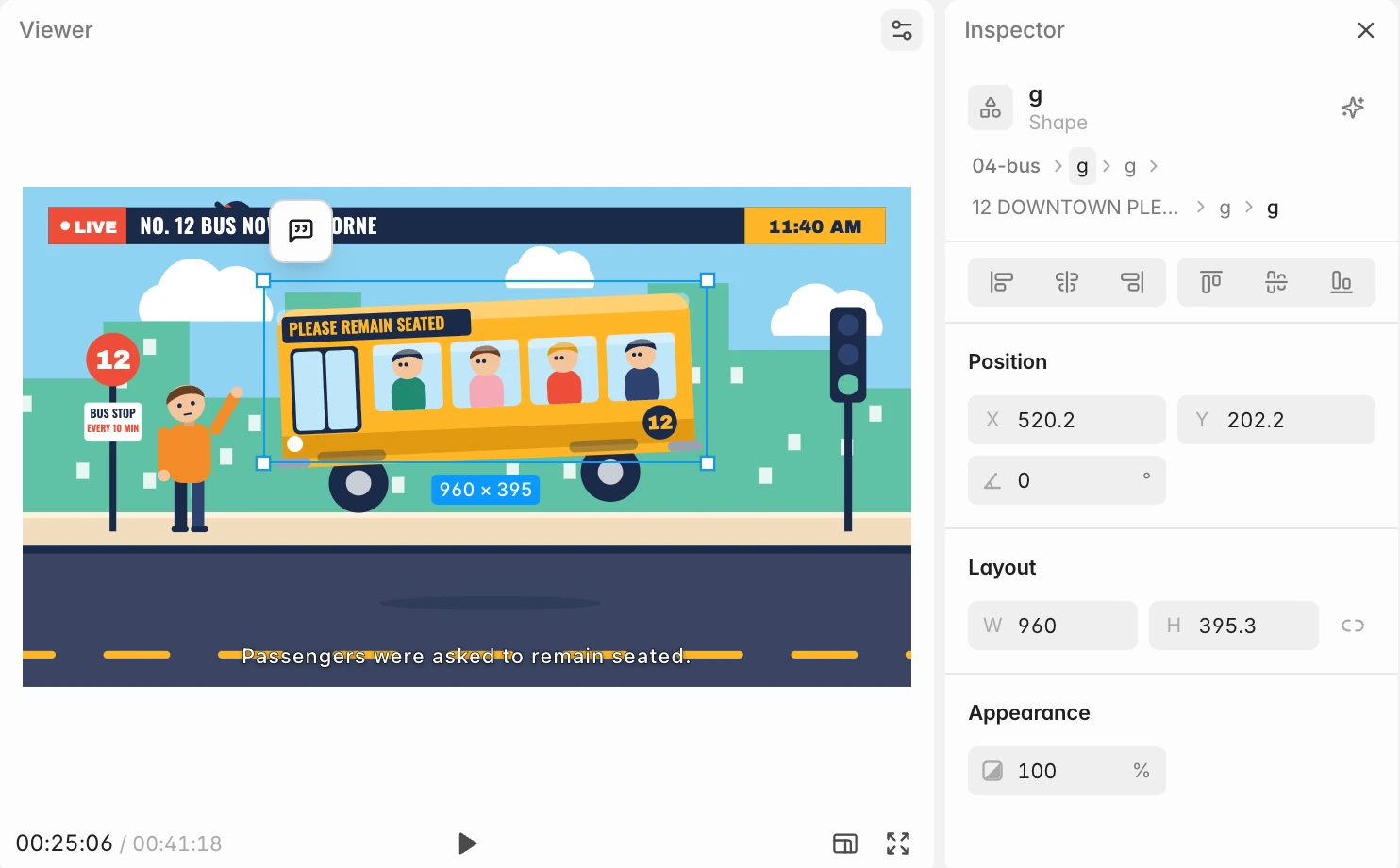
Select something
- Hover the picture to see an outline around the element under the pointer.
- Click to select it: a line of text, an image, a shape or a box. A blue frame appears with white corner squares and a width × height badge, in the film's pixels.
- Where things overlap, the smallest one is picked first. Alt-click the same spot again to go one layer deeper (text, then the card behind it, then the background).
- Drag across the picture, starting away from the current selection, to frame an area instead. It gets a plain blue box you can quote into the chat.
- Clear the selection with Esc or by clicking elsewhere.
The inspector opens beside the viewer with the selection's exact values. To select a whole clip rather than something inside it, click the clip on the timeline; it then gets handles in the picture too.
Move
Drag inside the frame. Hold Shift to keep to one direction.
An element snaps to the frame's edges and centre lines and to the edges and centres of other elements in the same clip; a whole clip snaps to the frame and to other clips. Hold Alt while dragging to place it freely.
With an element selected, the arrow keys nudge it by 1 px, or 10 px with Shift. With a whole clip selected, the arrow keys move the playhead instead.
Resize
Drag a corner to scale. Corners keep the proportions; hold Shift to scale an element (not a whole clip) freely. Drag an edge to stretch one side. Hold Alt to scale from the centre.
Rotate
Move the pointer just outside a corner until it becomes a curved arrow, then drag. Hold Shift to snap to 15° steps.
Edit text in place
Double-click a line of text in the picture (or select it and press Enter) and type.
- ⌘Enter saves. Enter adds a new line, except in text that has to stay on one line, where Enter saves.
- Clicking elsewhere saves too.
- Esc throws the edit away.
You can also edit the text in the inspector's Text field.
Quote it into the chat
A small quote button floats just above the selection's top-left corner (hover it for Quote into chat). It puts a reference to exactly that element (or area) in the composer, so you can ask for something you'd rather not do by hand: "make this bounce in", "swap this photo". See Ask for changes.
Undo
⌘Z undoes your last edit and ⌘ShiftZ redoes it. See Versions and history.
When a change can't be made by hand
Some things in a scene are worked out in code, for example a style that comes from a theme, or text that's assembled from pieces. When a change you make in the inspector or a retyped line can't be written back, the inspector says why and your change is reverted. Ask AI to do it puts the same change in the composer as a request instead. A move, resize or rotation that can't be saved simply snaps back.